
White label
UI Customization
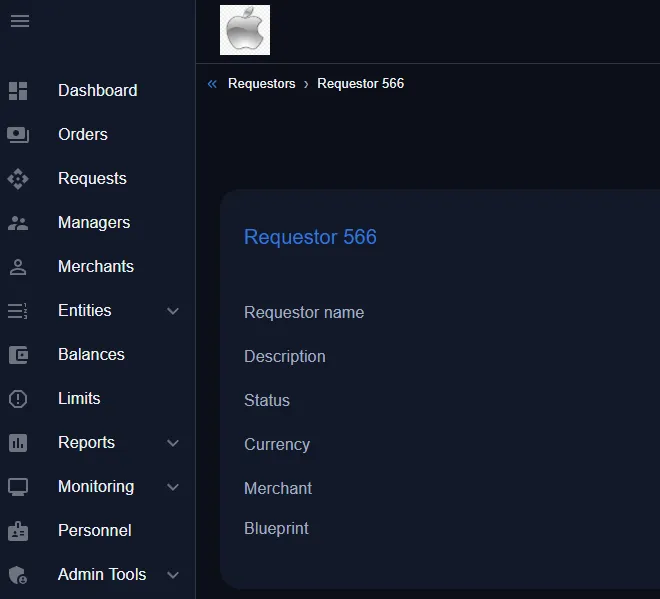
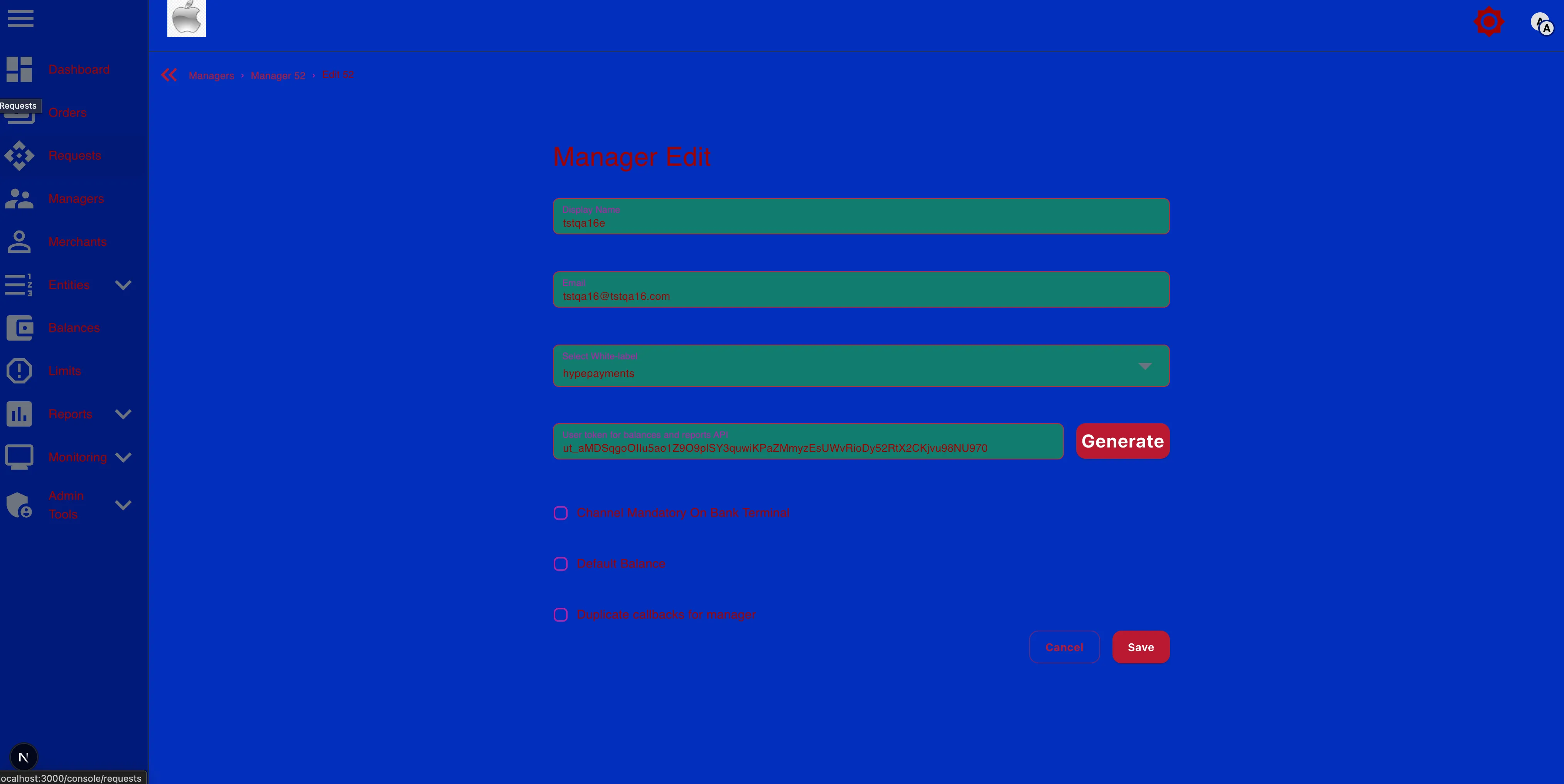
Within the White Label service, the company provides the ability to customize the admin panel upon the client’s request. If you are interested in this feature, you can submit a request to our support team.
Next, the UI customization options will be described.
Console, API (Production and Sandbox)
-
Set any text in the URL address of the page.
-
Change the color of any existing basic interface elements:
Default - main background
Pаper - background for menus, tables, and data blocks
Input - input field
-
Replace the font
You can set sizes, colors, line thickness, and shadow borders within reasonable limits. If you need something unique, it’s better to clarify this separately with our support team.
-
Add your logo
-
Change the favicon (Console only) - Browser tab image in base64 format.
Card Form Customization
The card payment form can be configured and adapted to the requirements of a specific integration. This allows you to change the appearance of the form, the way individual fields are displayed, and some behavioral features of the form during completion.
Customization of the form is used in cases where the standard form display does not fit the UX of the site, product requirements, or specific user scenarios.
It is important to understand that the form settings do not change the payment processing itself - they only affect how the user sees the form and interacts with it.
Form settings are applied at the White Label (WL) level or for a specific URL through which the payment form is opened. This means that all users who open this URL will see the same form configuration. Form settings cannot be changed separately for different clients or users within the same URL.
The custom card form allows you to manage several key parameters. These parameters affect the structure of the form and the behavior of individual fields.
Key elements that can be changed:
- Form Layout Mode — the way form fields are displayed
- Gоведение поля имени владельца карты (Cardholder field mode)
Form Layout
The form layout determines exactly how the fields are arranged on the page. In essence, it is a setting for the form’s structure — it defines how compactly or expansively the fields will be displayed.
There are two main display options:
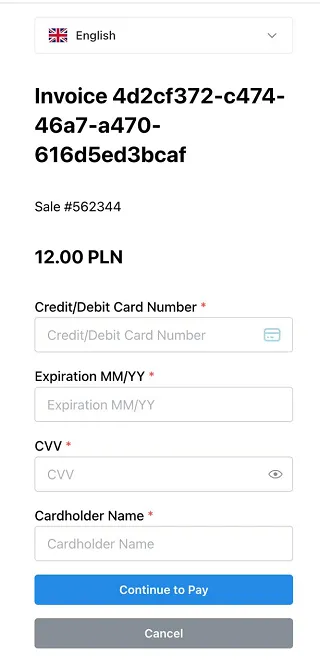
- Expanded layout - In this mode, each form field is displayed on a separate line. The form becomes longer, but the fields are easier to read and fill out. This option is most often used in classic web interfaces where readability and clear visual separation of fields are important.
-
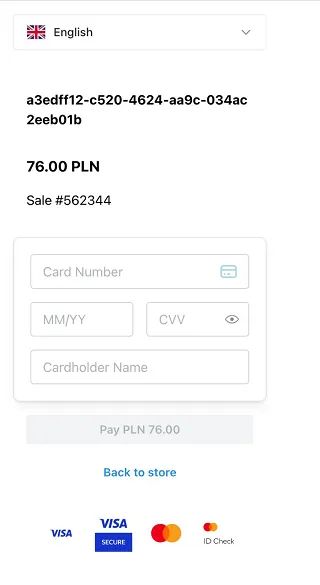
Compact layout - In this mode, fields are placed more densely. The form becomes shorter in height and takes up less space on the page.
This mode is most commonly used:
- On mobile devices
- In interfaces with limited space
- In scenarios where it is important to reduce the length of the form. The compact layout helps reduce the amount of page scrolling and speeds up the form-filling process for the user.
Cardholder Field
ПThe Cardholder field is the field where the cardholder’s name is entered. This field can behave differently depending on the form settings. In some scenarios, the user must enter the name manually, while in others the system can automatically populate it using the client’s data.
There are several options for how this field behaves:
- The field is displayed empty
This is the standard behavior of the form. The Cardholder field is displayed on the form and initially contains no value. The user must manually enter the cardholder’s name. This mode is used most often, as it fully replicates the standard card data entry process.
- The field is displayed and automatically filled
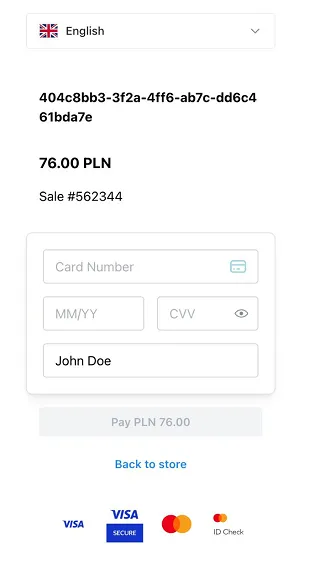
In this mode, the field is also visible on the form, but the system automatically populates it with the client’s first and last name. This is possible when the system has already received the client’s data earlier - for example, from the order details or the user profile. The user can change this value if necessary. This mode simplifies form filling and reduces the number of actions required from the user.
- The field is hidden and filled automatically
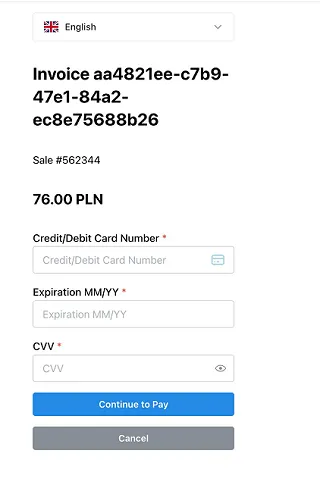
In this mode, the Cardholder field is not displayed to the user. The system automatically uses the client’s first and last name as the cardholder value. If for any reason the client data is missing, the field automatically becomes visible, and the user can fill it in manually. This mode is used in scenarios where the client’s data is already known to the system and there is no need to request it again.