
Orders
Transaction Information
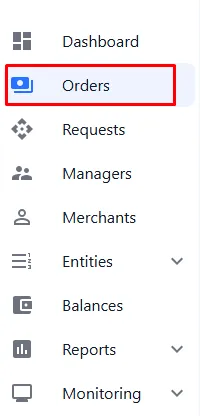
In the left menu panel, go to the ORDERS tab
This section displays all transactions processed in the system
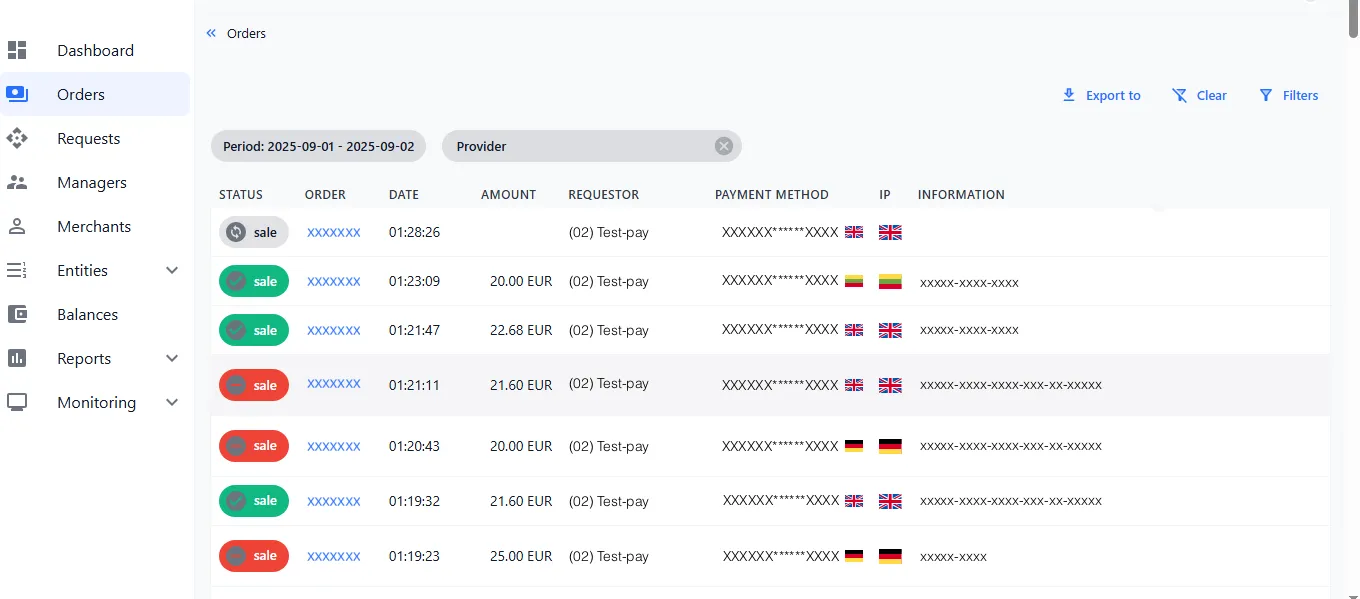
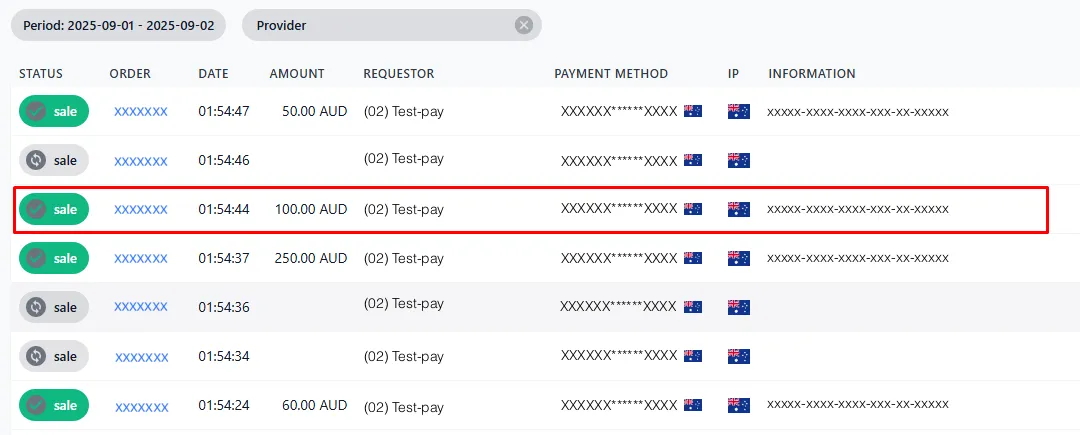
Obtain Detailed Transaction Information
To obtain detailed information, click on the desired transaction
The opened window contains all information about the processed transaction
Date – transaction date
Amount – transaction amount
Status – ransaction status
Type – transaction type
Error – error code and description
Order ID – unique transaction identifier
Merchant Order ID – merchant identifier, which may be unique or non-unique depending on the provider’s settings
Provider Initial Order ID – identifier from the provider’s side
Description – transaction comment
Statistics
Card Statistics
In the Statistics section, you can view all information related to the card
-
To view information about transactions and cards used by a specific user, click on the cardholder’s name
-
To view all transactions conducted using a specific card, click on the card number
Blacklist
Adding to the Blacklist
In the BLACKLIST section, you can add various card parameters to the blacklist: country, domain, PAN, BIN, and other necessary parameters.
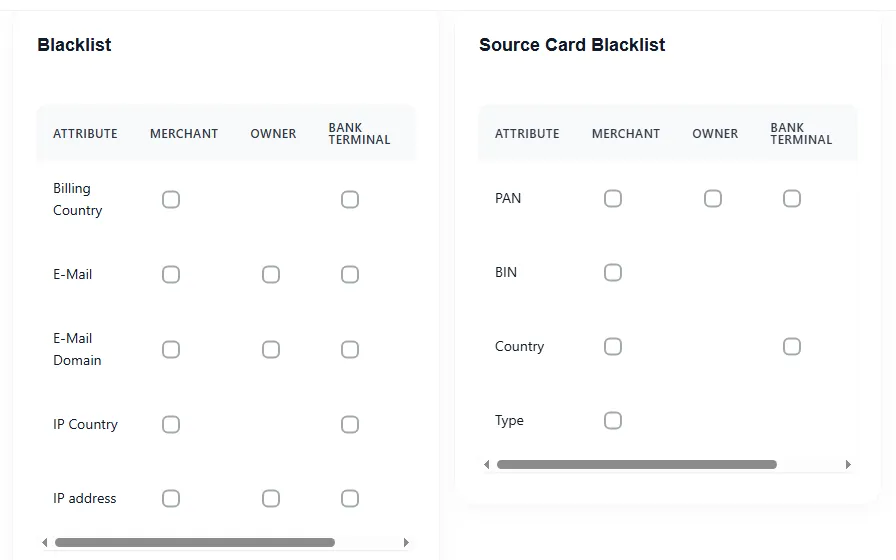
To add to the blacklist, check the boxes for the selected parameters.
Requests
The Requests section displays logs of the merchant’s interactions for the operation.
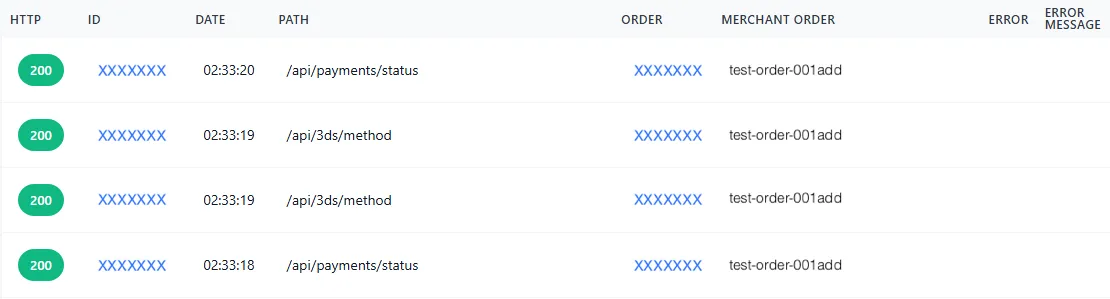
To display detailed information about a specific merchant request, click on the request row
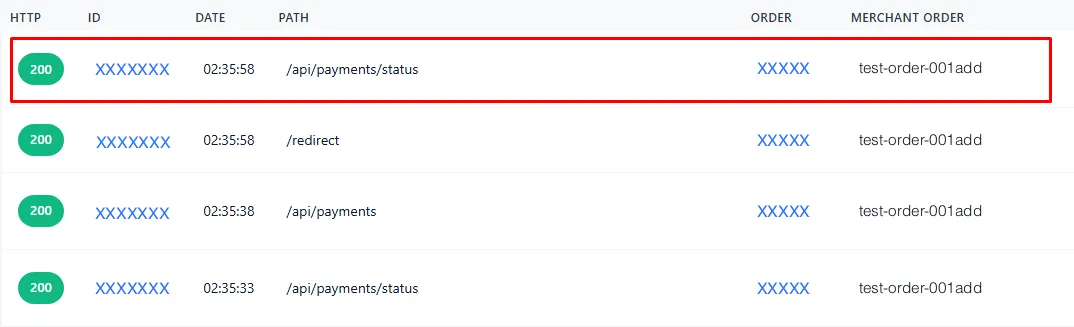
The section displays general information about the request:
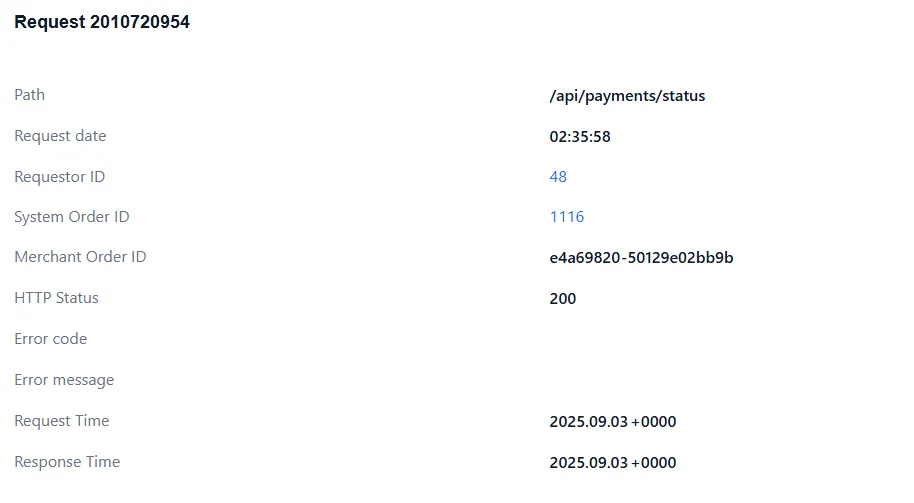
Path – API link used by the merchant
Request date – request submission time
Requestor ID – identifier of the request initiator
System Order ID – unique transaction identifier
Merchant Order ID – merchant identifier, which may be unique or non-unique depending on the provider’s settings
HTTP Status – server response code for HTTP protocol requests
Error code – error code
Error message – error description
Request Time – time the request was sent to the server
Response Time – time the server response was received
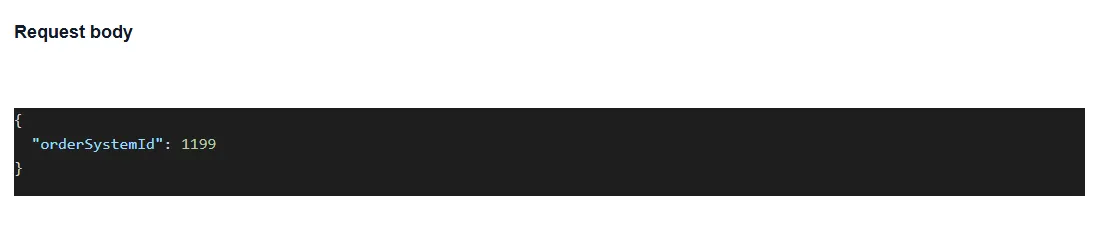
The Request Body section displays information about the data sent by the merchant:
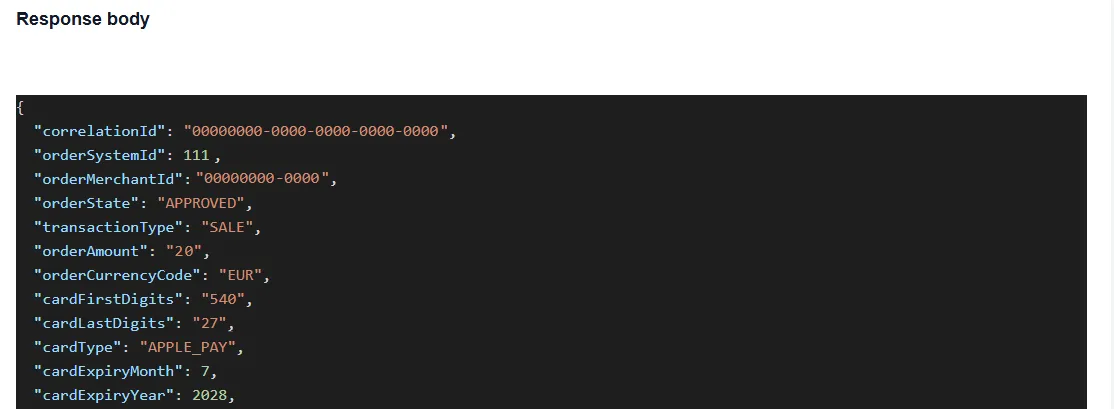
The Response body section displays the server response:
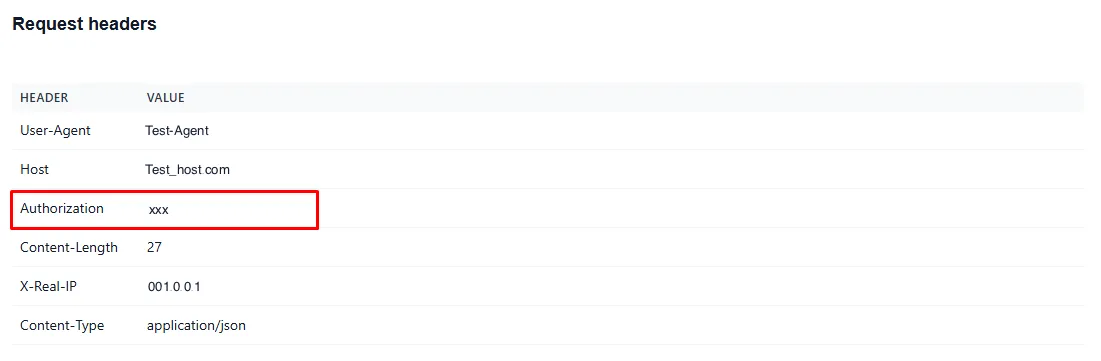
The Requests Headers section displays the request headers, where you can check the authorization token if needed:
Manual Transaction Operations: Reversal, Chargeback, Fraud, Approve, Check Status
You can manually perform the following operations by clicking the corresponding button in the transaction information section:
Reversal – process a refund
Chargeback – mark the transaction as “chargeback.” This operation is only a marker, and in this case, the information is sent to the merchant for potential further filtering
Fraud – mark the transaction as “fraud.” This operation is also only a marker and does not send any data to the provider
Approve – change the transaction status from “SALE_DECLINED” to “SALE_APPROVED.”
WARNING! When manually changing the transaction status, the logs for the “SALE_DECLINED” status will be deleted.
Check Status - an additional fixed status request to the provider. If the provider has a fixed status, it will be updated after clicking the button.
Filters
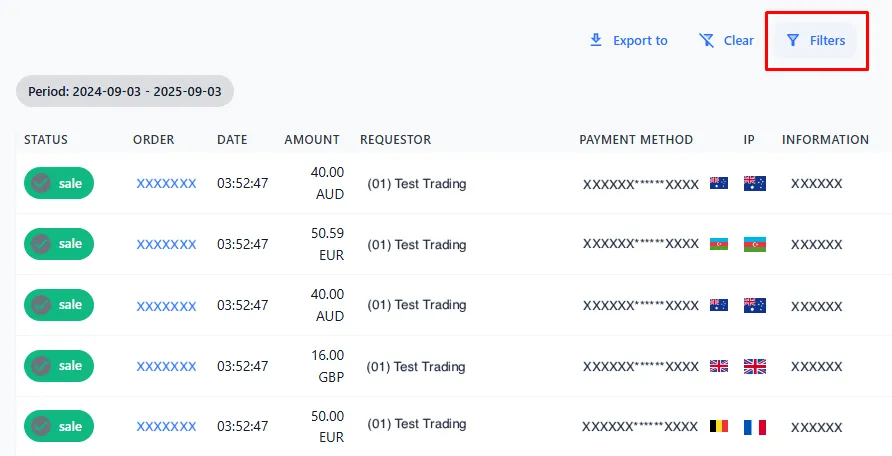
In the Orders section, you can use filters to search for specific transactions.
To select filtering criteria, click the Filters button in the top right corner of the page:
In the opened window, select the necessary criteria:
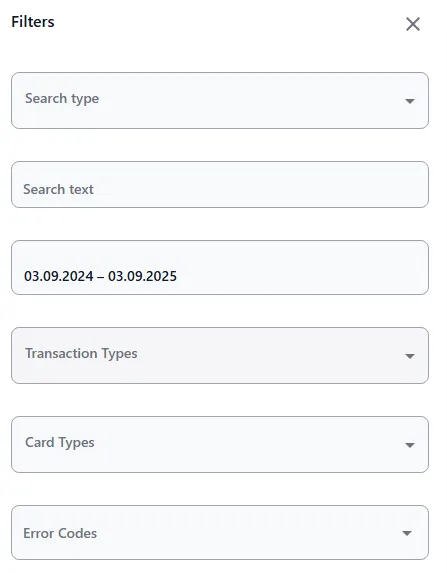
Search type – type of search
Search text – text search
Period – transaction period
Transaction types – Transaction type
Card types – card type
Error codes – code
Transaction statuses – transaction status
Order statuses – filter type value
Entity filters – select filter type (Requestor, Blueprint, Merchant, Provider и т.д.)
Currency – filter type value
After selecting the filtering criteria, click the Apply button:
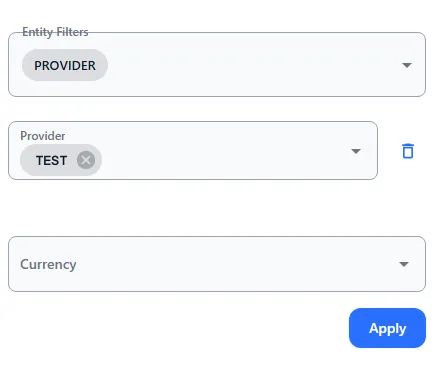
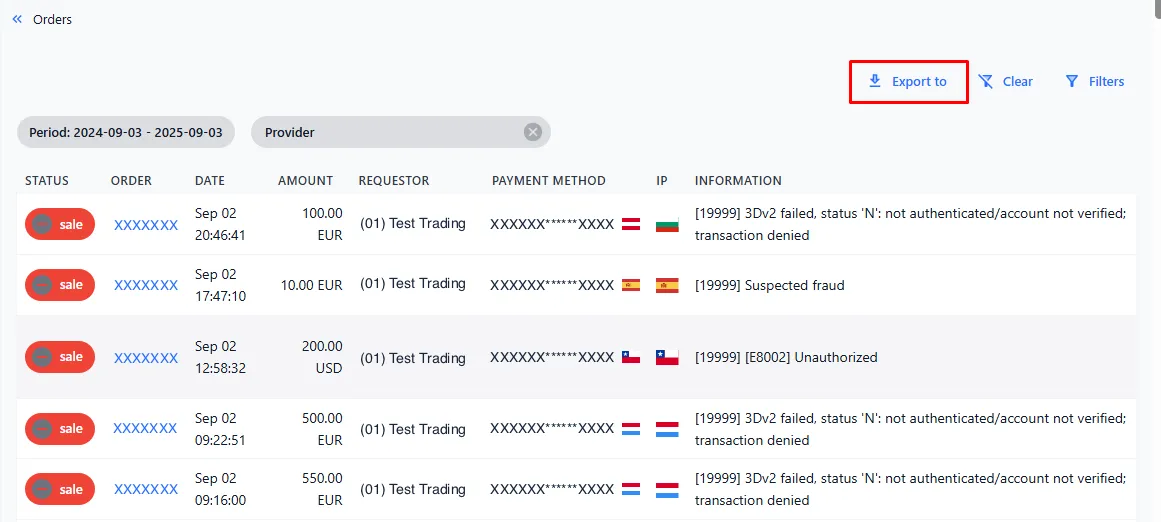
After clicking the Apply button, the Orders screen will display transactions that match the filter conditions.
The data can be exported in a report format by clicking the Export to button:
Next, select the desired report format:
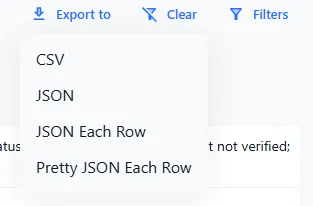
The report generation will begin, after which the data will be downloaded to your PC.