
Merchant
Obtaining the List of Merchants
To view the list of merchants, go to the MERCHANTS tab on the left menu panel
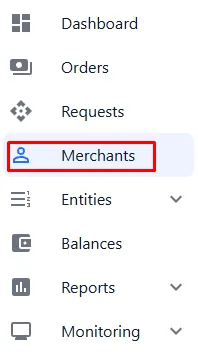
To view information about a merchant, click on the row with the name of the desired merchant in the general list:

A window with the merchant’s information will open:
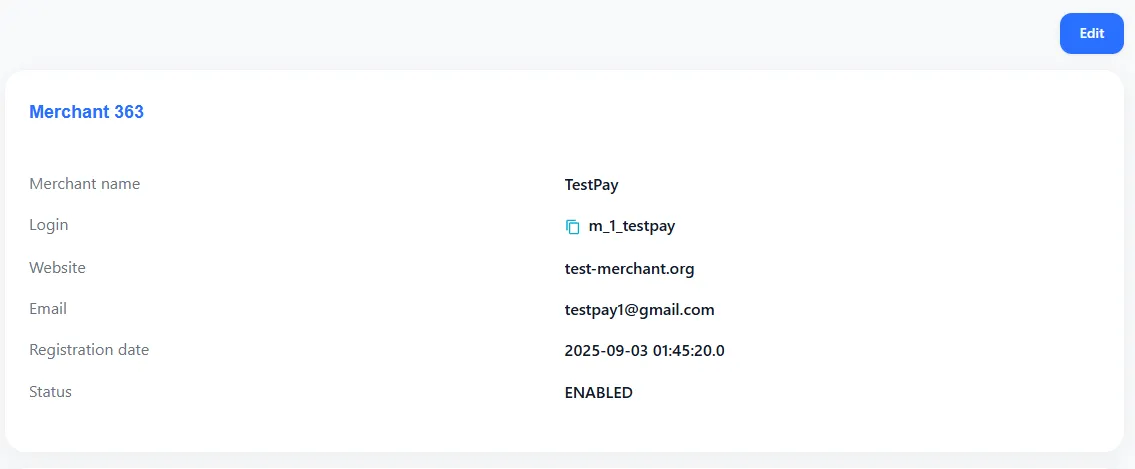
If necessary, you can check or provide tokens for integration in the User Token and Default Tokens sections
Add Merchant
To add a merchant, click the Add Merchant button on the MERCHANTS tab
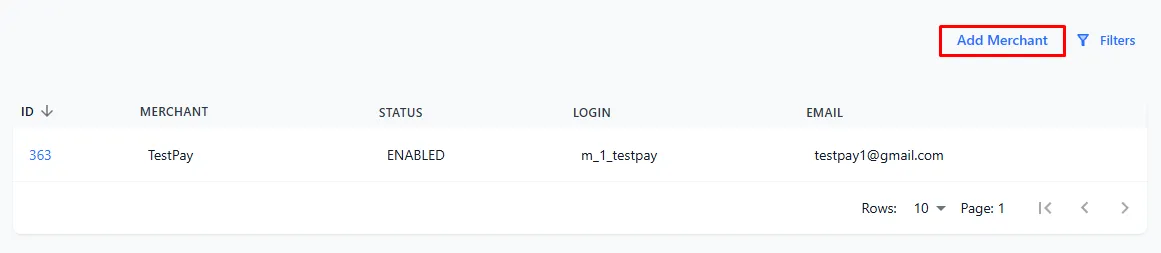
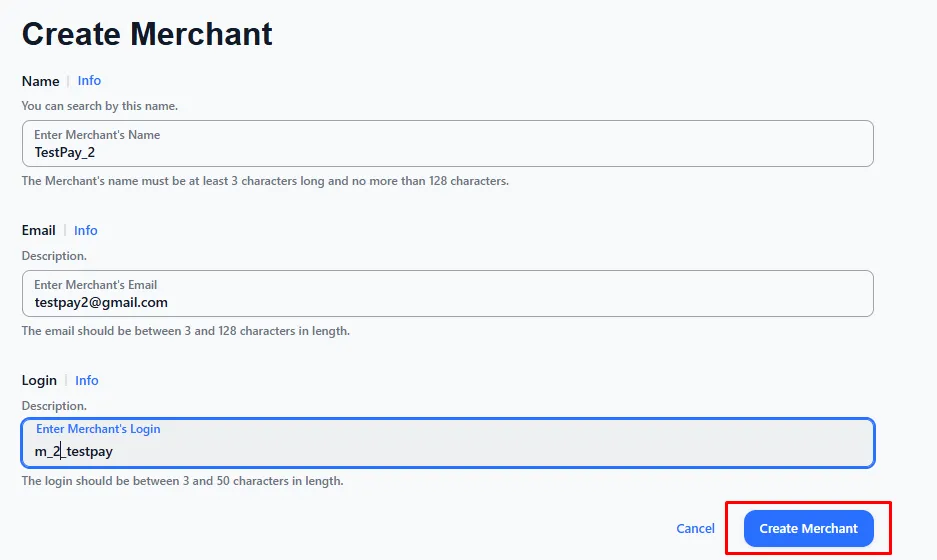
After clicking the Add Merchant button, a window for filling in the merchant’s details will open
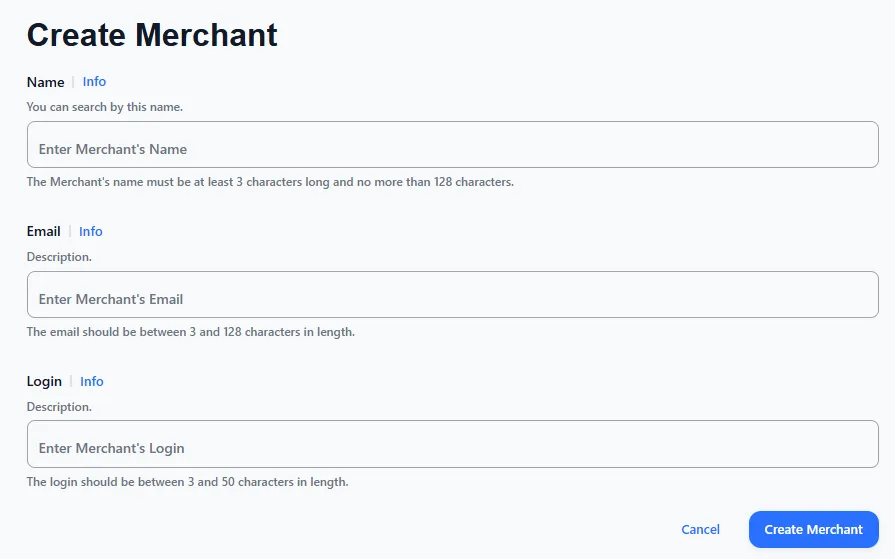
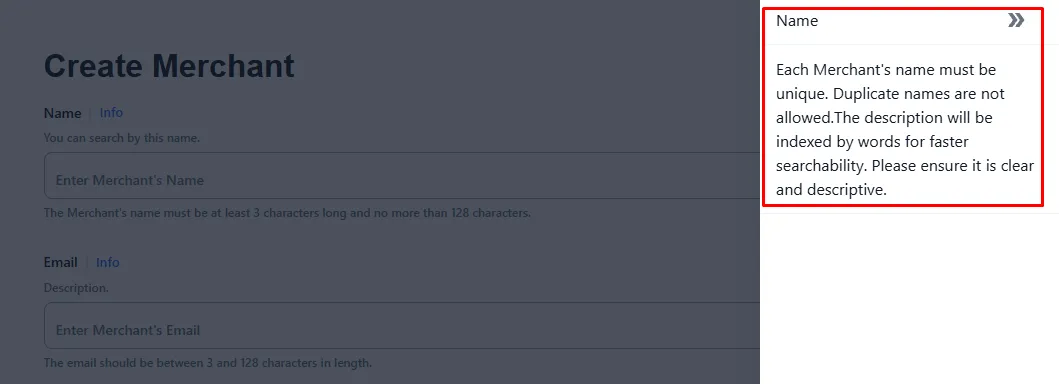
For additional information about a field, click the Info button, and a screen with a description of the field being filled will appear:
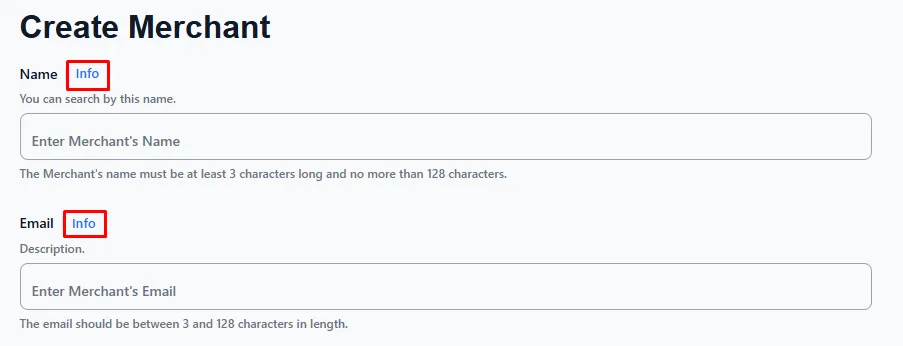
After filling in all the main fields, click the Create Merchant button
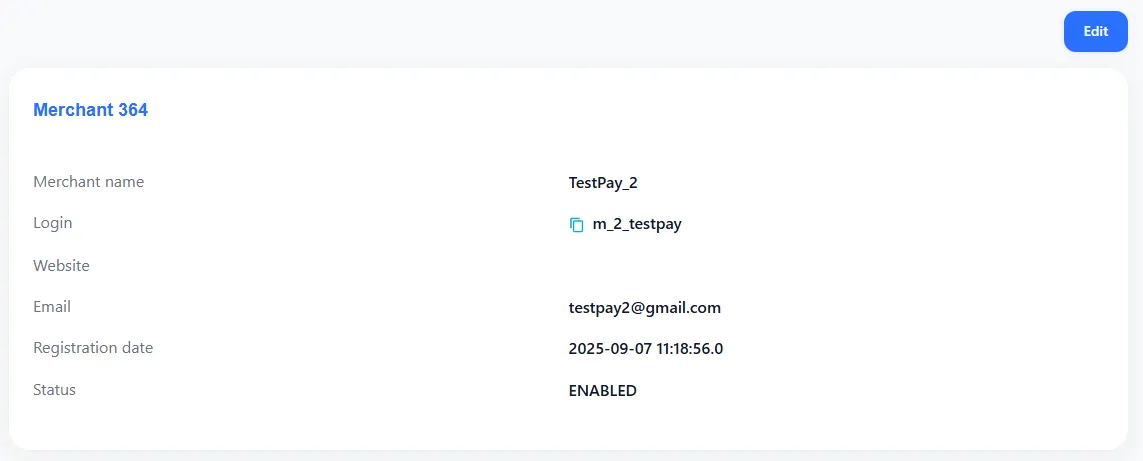
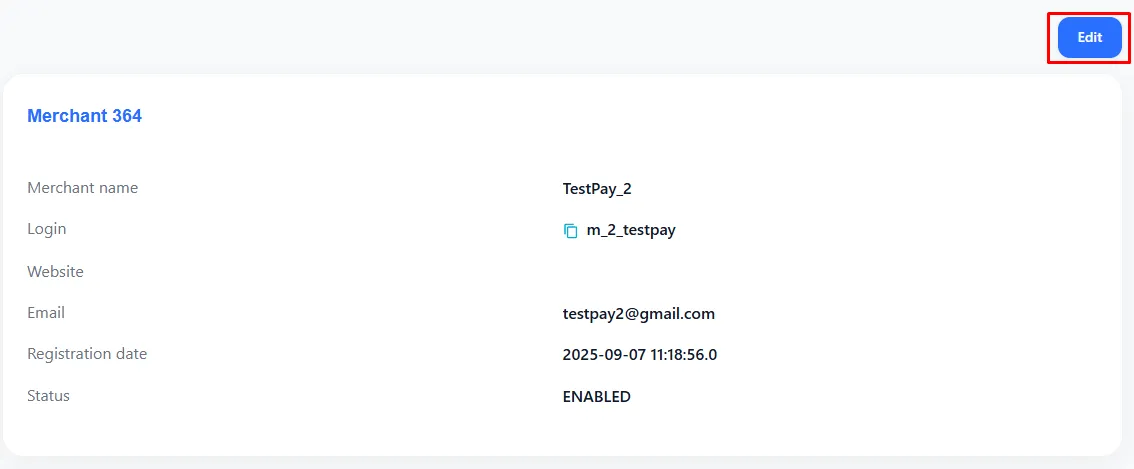
After saving the merchant in the system, a card with information about the added merchant will open:
Edit Merchant
To edit merchant details, click the Edit button on the merchant’s card:
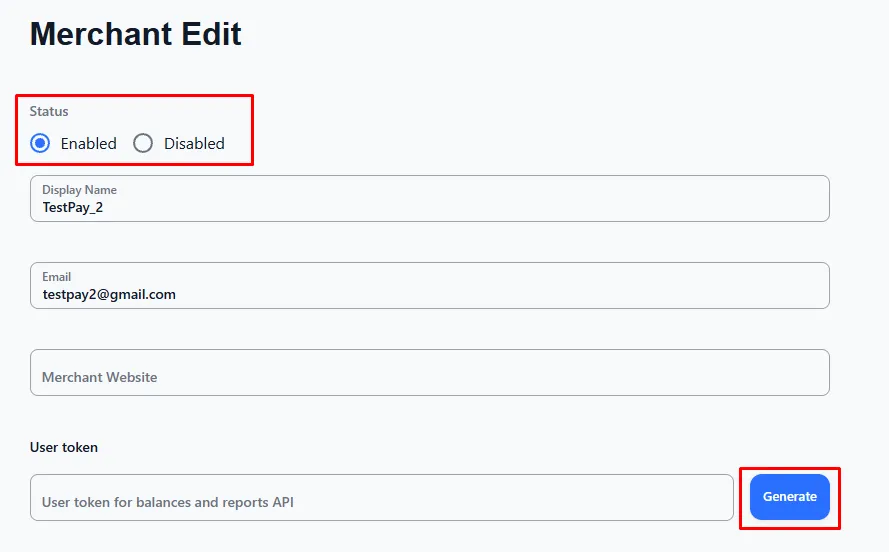
In the merchant information editing window, you can:
-
Change the status to Enabled / Disabled
-
Specify the merchant’s website
-
Create a User Token
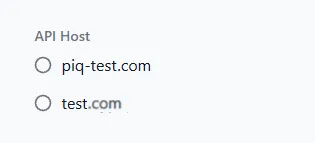
- Specify the API Host
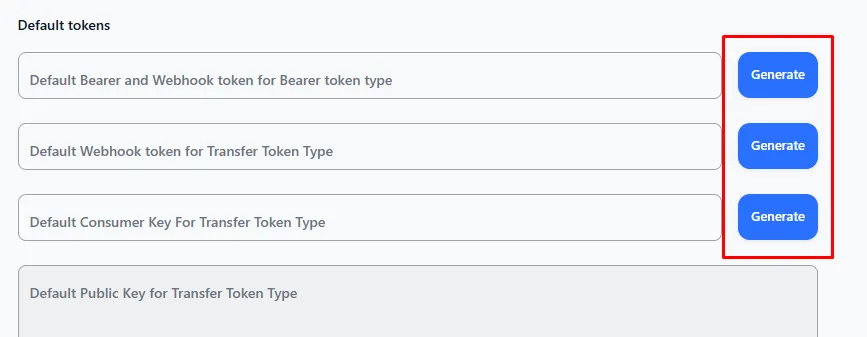
- Generate or specify tokens that will be displayed in all the merchant’s Requestors
Additionally:
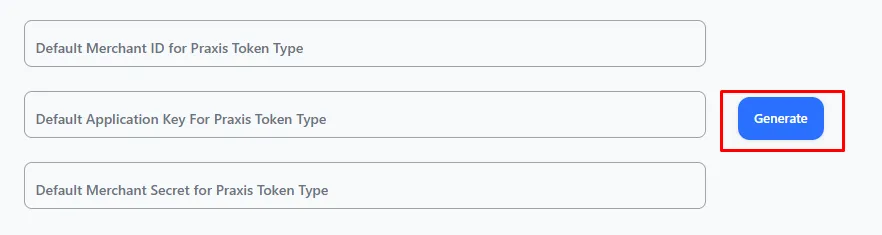
- Generate tokens for integration
After completing the data entry, click the Save button