
Entity Copying
If you want to transfer parameters from already existing Entities to create new ones you can use the function Copy.
Copy is available on the page of each of your individual entity next to the Edit button.
Let’s consider examples of Copying each entity separately.
Copying Blueprint
-
On the Blueprint List page click on the ID of your Blueprint that you want to copy
-
In the upper right corner of th e page click the Copy button
-
Next name the new Blueprint
-
Then you can select a new manager or leave the old one
-
Specify the currency
With Inherit you can transfer the currency from the original
You can also use the Additional Configuration In Different Currency function.
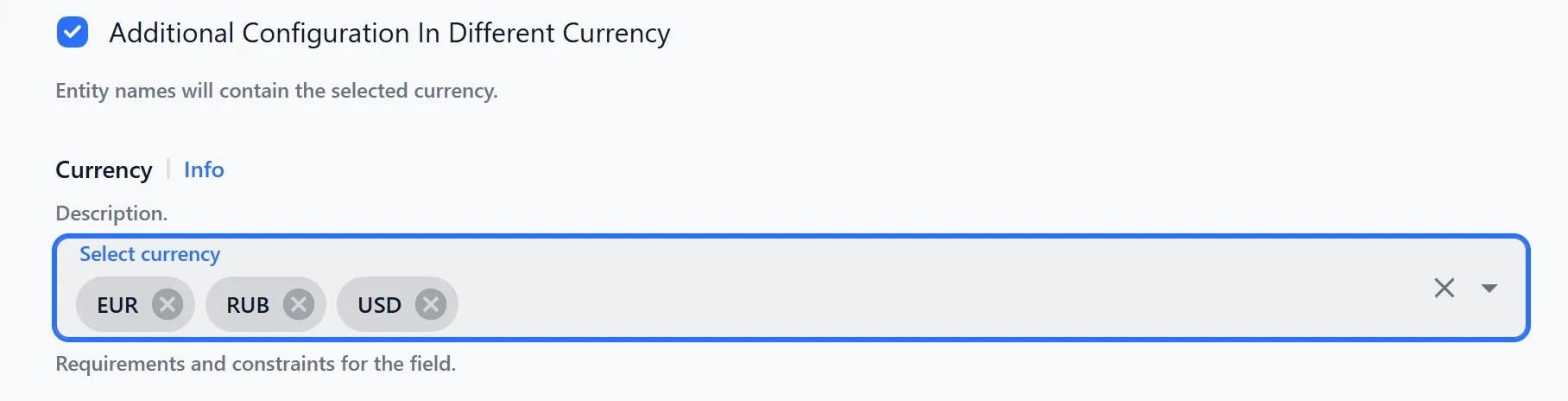
Check the box next to it, and then in the Currency field, select the currencies you need from the list.
The ISO-3 currency code of the entity will be automatically added to the end of the names of copied entities.
You can also use the Additional Configuration In Different Currency function.
Check the box next to it, and then in the Currency field, select the currencies you need from the list.
The ISO-3 currency code of the entity will be automatically added to the end of the names of copied entities.
-
In the lower left corner of the page you can also copy Restrictions and Configurstions from the original Blueprint.
-
When clicking Configurstions you will see fields Requestor and Bank Terminal
-
When transferring Requestor you will be offered interaction with tokens:
- Copy without tokens - clone Requestor without tokens
- Generate new - Create new tokens with the ability to change API Hosts
- Copy from parent requestor - Copy from the original Requestor
- Copy from merchant - transfer tokens from the merchant with the ability to change API Hosts
Next enter a new name for Requestor to create its copy.
-
When transferring Bank Terminal simply enter its new name to create a copy
-
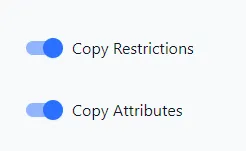
You can also transfer Restrictions and Attributes settings as shown in the screenshot:
-
When clicking Copy Configurations a window will appear with the following parameters:
- Select a new merchant To not change the merchant just leave the field empty
- Autoname entities - will name your entities automatically with the ability to replace individual words in the original names
- Configure requestor
- Assign a new bank terminal or leave the old one
-
After completing the setup click the Create blueprint button in the lower right corner of the page
Copying Bank Terminal
-
On the Bank Terminal List page click on the ID of your Bank Terminal that you want to clone
-
In the upper right corner of the page click the Copy button
-
Use the inherit function to automatically fill in the fields:
- Bank Terminal Name
- Manager Rate Plan
- Bank Terminal Description
- Currency
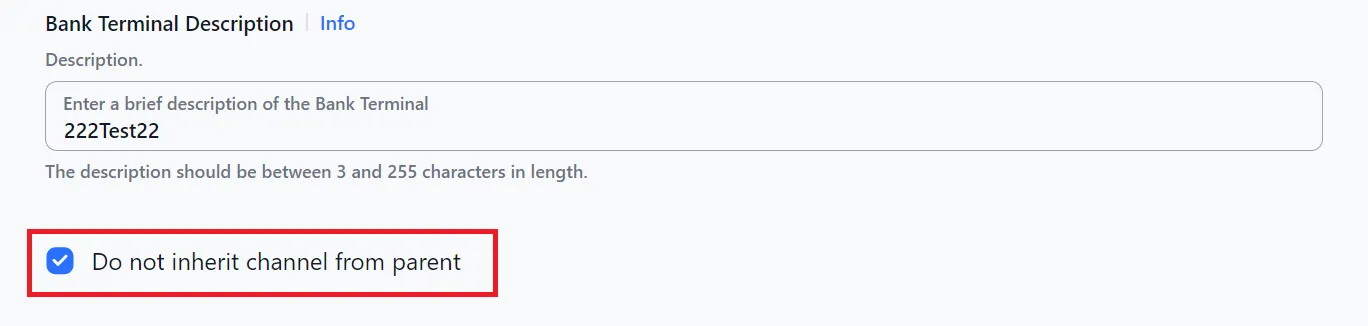
Also if you do not need to copy Channel settings you can separately check the box next to the corresponding option
-
Next you can enter Financial Instrument name
-
You can also transfer Restrictions and Attributes settings as shown in the screenshot:
-
To complete copying in the lower right corner click Create Bank Terminal
Copying Requestor
-
On the Requestor List page click on the ID of your blueprint that you want to clone
-
In the upper right corner of the page click the Copy button
-
Use the inherit function or manually enter the name and select new restrictions and blueprint
-
Next in the tokens item you can:
- Copy without tokens - clone Requestor without tokens
- Generate new - Create new tokens with the ability to change API Hosts
- Copy from parent requestor - Copy from the original Requestor
- Copy from merchant - transfer tokens from the merchant with the ability to change API Hosts
-
Next you can transfer restrictions and atributes from the original or create new ones manually after creation via the Edit button
-
After completing the setup click the Create requestor button in the lower right corner of the page