
Bank Terminal
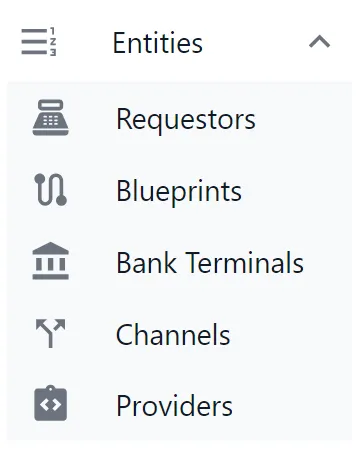
Open the left sidebar menu and select the Entities tab
Then select the Bank Terminals section
Then in the top right corner of the page, click Create Bank Terminal

On the creation page, do the following:
- Name your bank terminal
- The name of each bank terminal must be unique
-
You can add a description of the bank terminal in Bank Terminal description
-
Set the status – Enabled/Disabled
-
Enable/disable 3DS Secure
-
Set the Descriptor
- The description will be displayed in the Descriptor field for the merchant
- Select a provider
! After creating the bank terminal, the provider cannot be changed
- Configure the channel
- If you have multiple bank terminals
- Select a currency from the provided list
Then in the bottom right corner of the page, click Create Bank Terminal
You will be redirected to the page of your new bank terminal
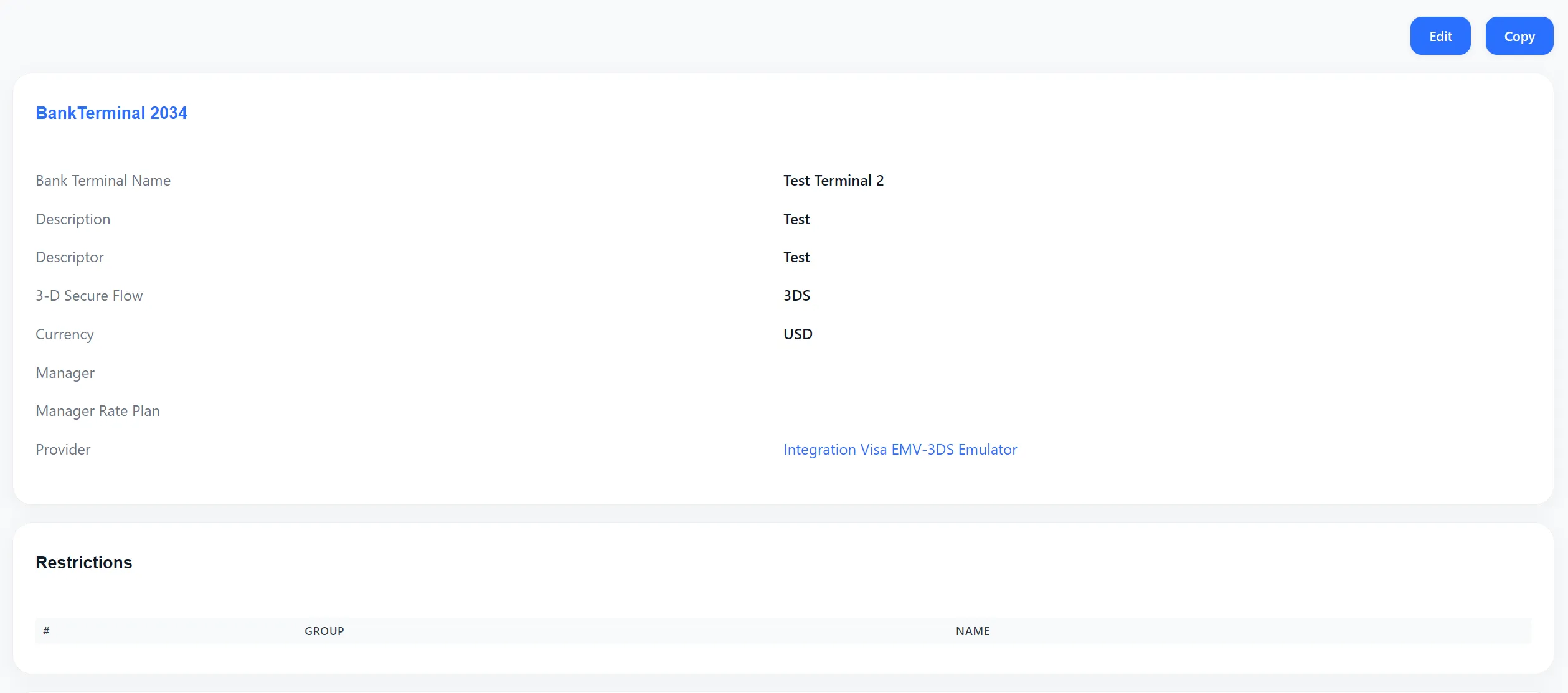
In the top right corner of the page (Edit and Copy buttons), you can edit the bank terminal settings or copy them to create a new one
Next is the main information about the bank terminal
Below that – the Resctrictions section, a filter for incoming requests
- Needed for your Route in the Blueprints section
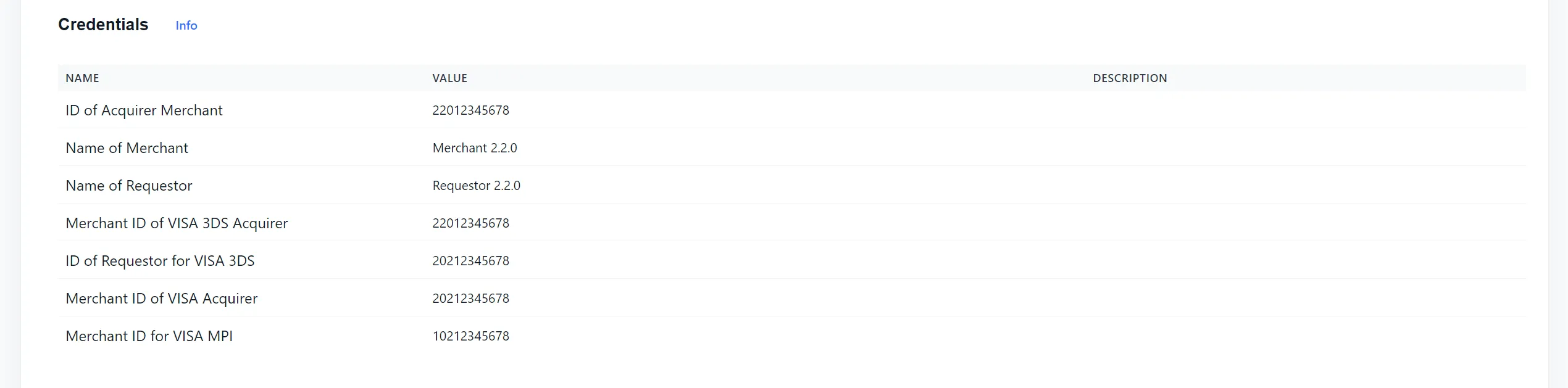
Next – the Atributes section
Here you need to specify the following:
- 3DS options
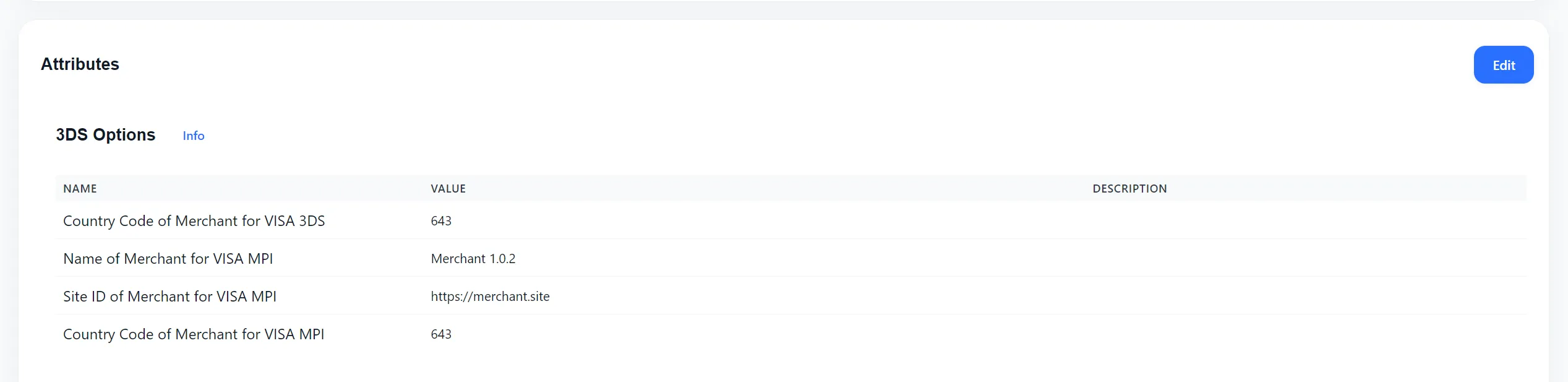
- Credinatials
- Currency Conversion

- Options

- Recurrents Configuration

- URL Configuration

- Values are set based on your provider’s parameters
Adding a Bank Terminal to the Route
In the Route Rule section, select CREATE CASCADE
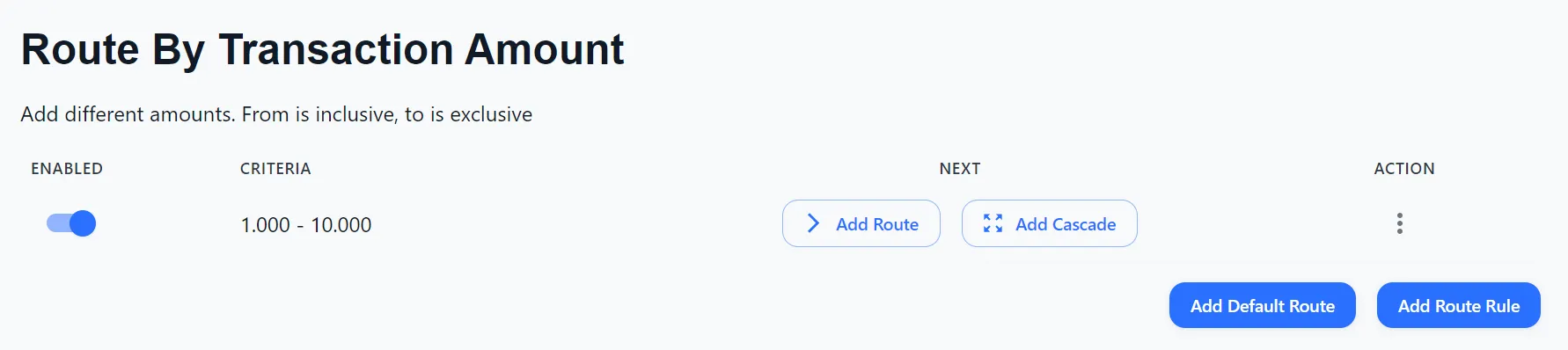
Then select the cascade type:
By Coefficient
- Transaction Amount
Cascade by coefficient, based on the transaction amount, allows sorting transactions by terminals depending on the amount and the specified probability percentage.
- Transaction Count
Cascade by coefficient, based on the number of transactions, allows sorting transactions by terminals depending on their count and the specified probability percentage.
Equals ON
- Transaction Amount
Even distribution by transaction amount allows sorting transactions by terminals depending on the amount with an equal probability percentage.
- Transaction Count
Even distribution by the number of transactions allows sorting transactions by terminals depending on their count with an equal probability percentage.
Chain BY
- Coefficient by Transaction Count
Chain by coefficient, based on the number of transactions, allows sorting transactions by terminals using the specified probability percentage and the chain principle.
If an incoming transaction is filtered or exceeds the limits on some terminals, the balancing algorithm will exclude those terminals and then form a chain with the remaining ones according to their coefficients.
- Equivalently on Transaction Count
Even chain, based on the number of transactions, allows sorting transactions by terminals using the chain principle and an equal probability percentage.
If an incoming transaction is filtered or exceeds the limits on some terminals, the balancing algorithm will exclude those terminals and then form a chain with the remaining ones based on an equal probability percentage.
- Sequence
Chain by sequence allows sorting transactions using the principle of a cascading chain.
Other
- First in Sequence
First in sequence allows sorting transactions by selecting the first suitable terminal for them.
After selecting one of the listed options, in the bottom right corner of the page, click Create Cascade
Now you can add the terminal to the Route:
In the cascade section, select Add Terminal
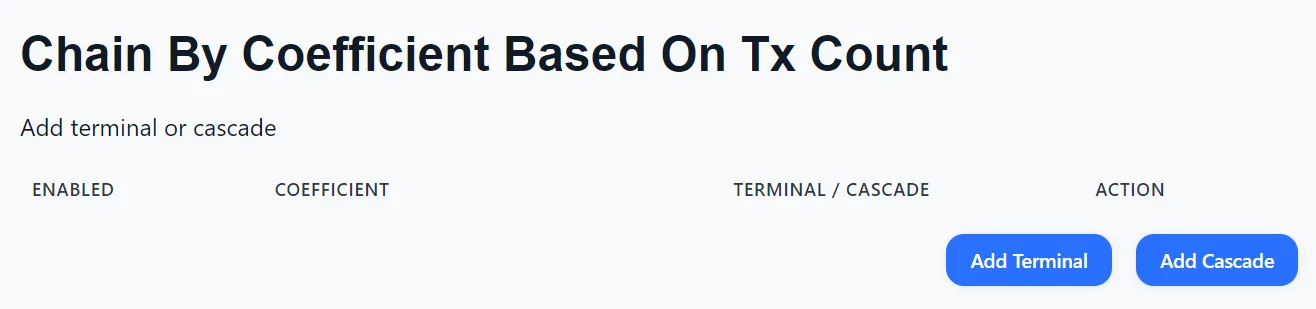
Then select your terminal from the list, and it will be added to the Route